Trouble Shooting
Get your connection
preforming as it should
Power
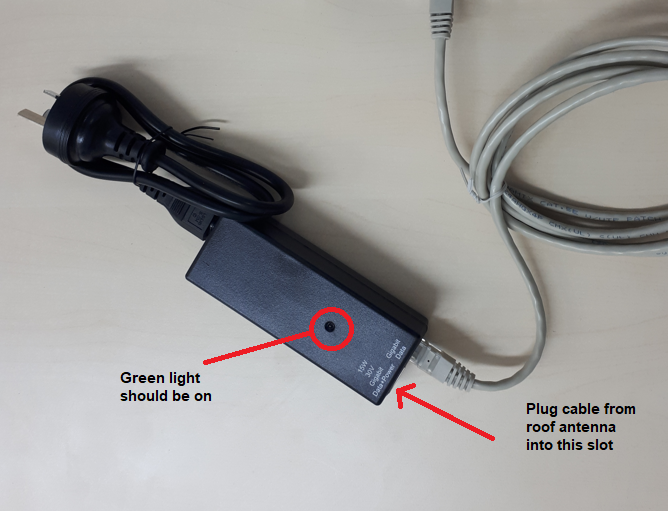
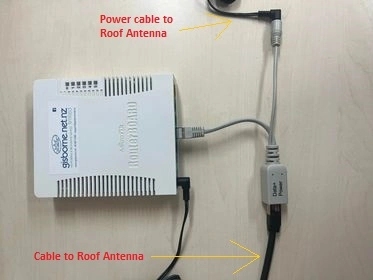
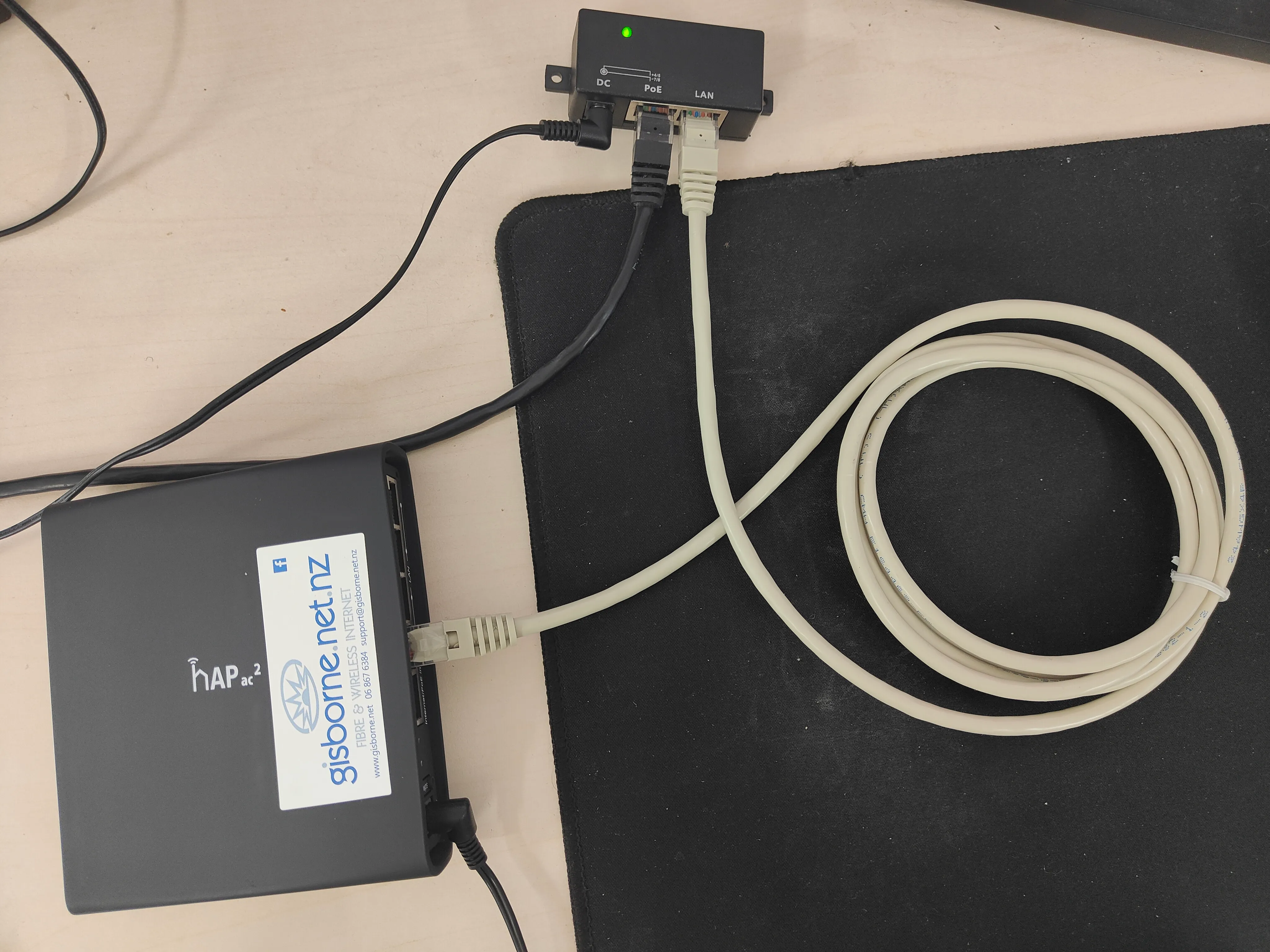
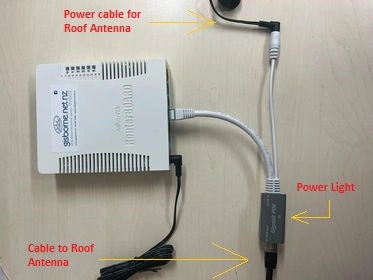
Check that the Wifi router has lights on it - if it doesn't, check the power source. Sometimes the router gets unplugged, or if it's plugged into a multiboard, check if multiboard still works. If you're a rural customer, you'll also have a rooftop antenna, which is powered by a POE device nearby your wifi router - see the diagram shown below. If you're a fibre customer, you'll have an ONT (Fibre box) and a Wifi router. Check the ONT is plugged into power and has lights going.
Wifi Router - Age
If your router is more than 4 years old, it could be slowing down your internet. You can test this by unplugging the Ethernet cable from the back of the Wifi router and plugging it directly into your computer – if your internet speed significantly increases, then the Wifi router is the problem. Either give us a call, come by our office, or check out our Equipment page. We have a selection of mesh-network Wifi routers work extremely well and are very reasonably priced.
Wifi Router - Location
If your Wifi router is located at the other end of the house, or surrounded by metal objects/walls, its signal may not be strong enough. You may need to upgrade your router, or run a cable into a more central location. Place your Wifi router as high as possible in the room for the best result. Alternatively, can place multiple mesh-network routers around your house to spread your wifi connection further around your property.
Never Reset; Reboot instead.
The reset button on the Wifi router will delete all the settings that make it work on our network. If your having consistent problems, sometimes unplugging the power cable on your wifi router, waiting a few seconds, and then plugging it back in again, can help. You can also do this with the POE device that powers your roof unit. Don't do this all the time, or if we're already working on it, as it will log us out of your equipment.
Power surges and weather events
If you notice your internet speed has dropped after a power cut, contact our office, as occasionally power surges can affect our equipment. Lightning strikes can also damage equipment and very high winds can move rooftop antennas, so contact us if you think your connection has been affected by adverse weather.
Don’t turn off your rooftop unit!
We are constantly monitoring the connections on our network, making upgrades and improvements. Our rooftop units don’t use much power, so if you want the best from our service we recommend that you don’t turn the power to the roof off at night or if you’re out during the day.
Cables plugged into the wrong places
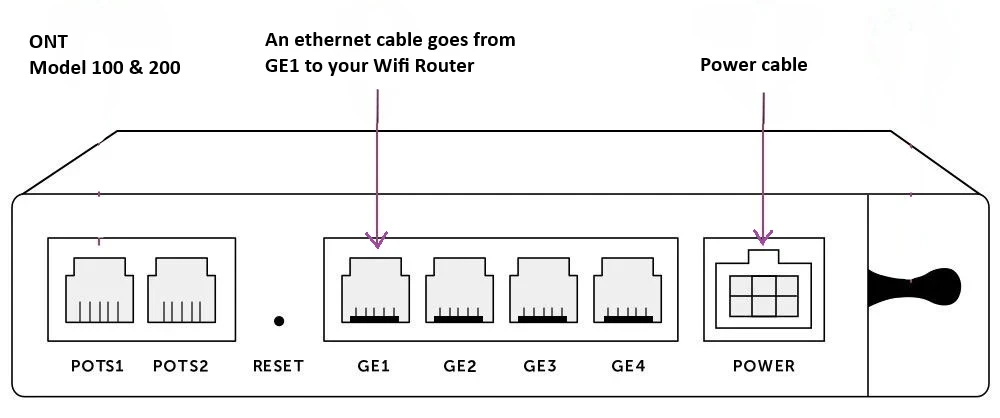
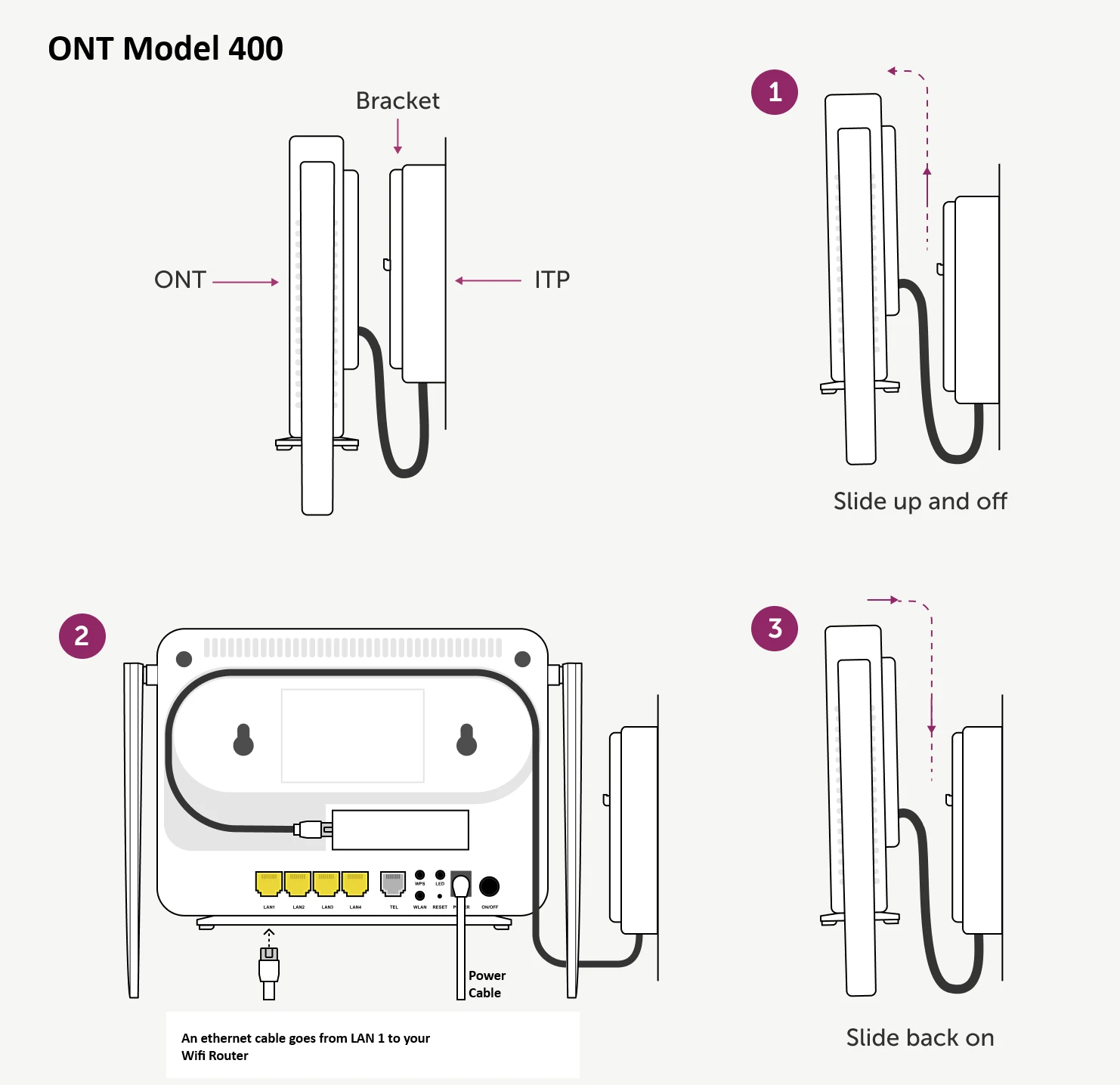
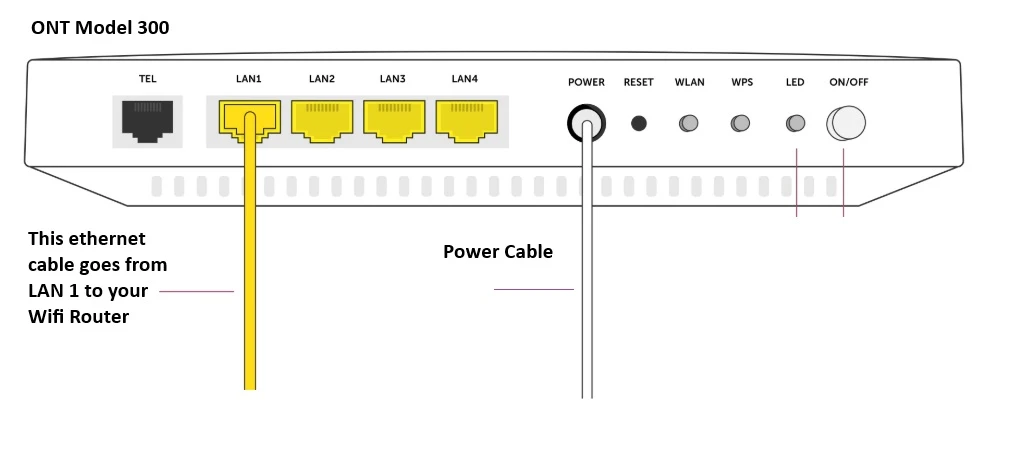
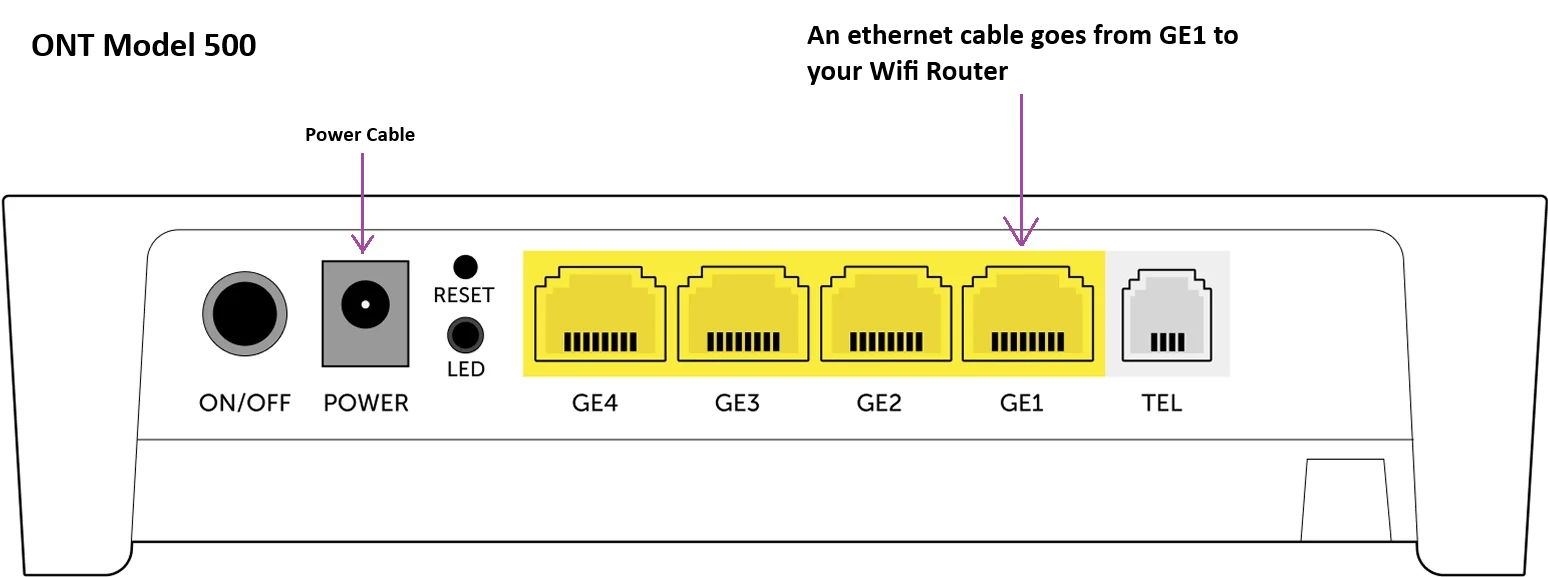
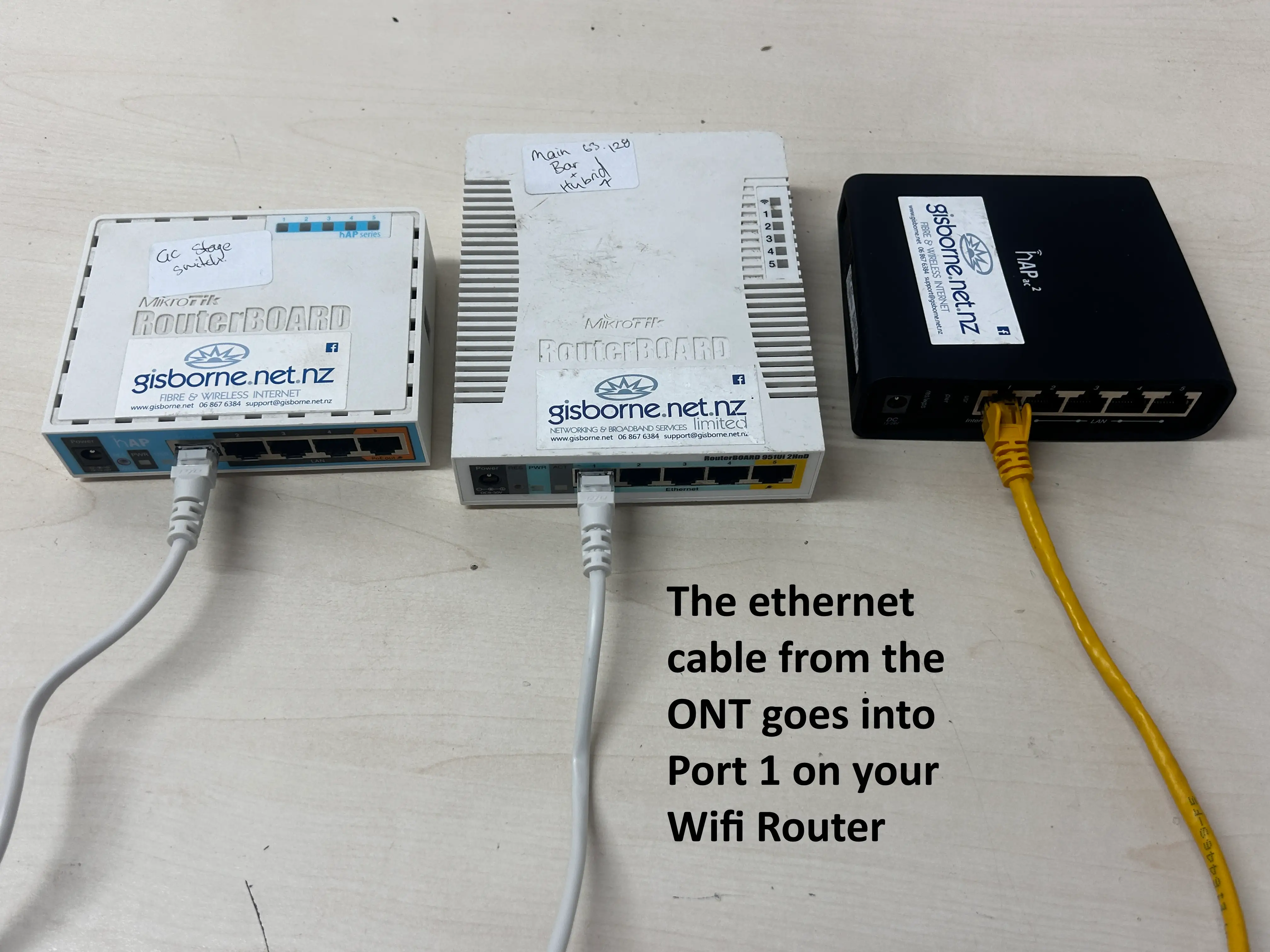
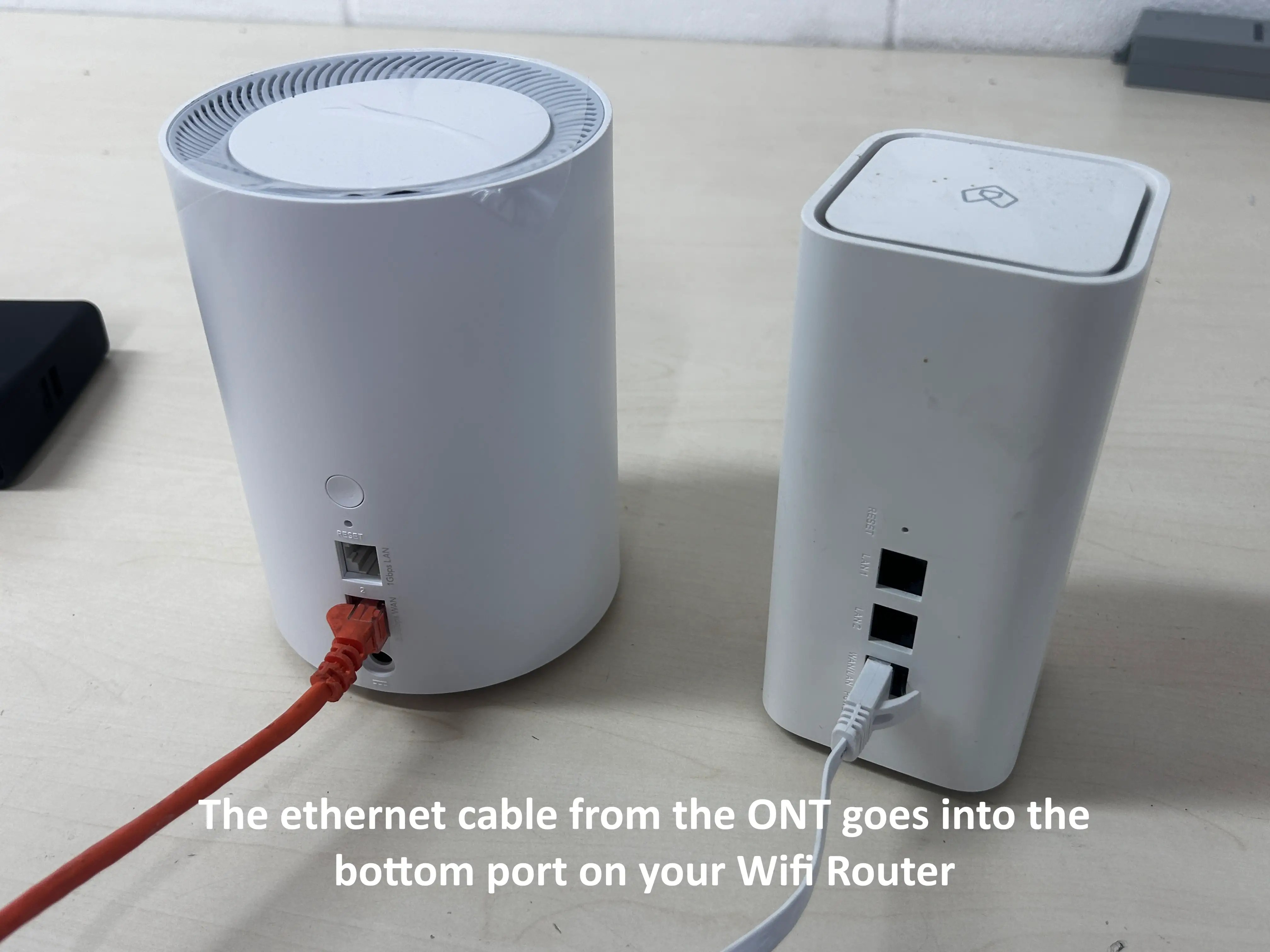
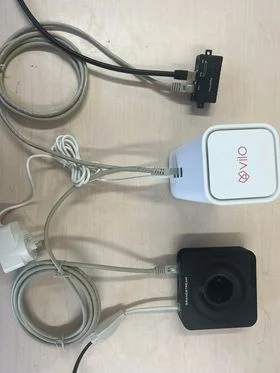
Sometimes during a clean-up, someone will unplug the internet equipment and then plug it all back in. If certain ethernet cables aren't plugged in the same way they were before, your internet might not work. Check the diagrams below or contact us if you're having trouble figuring it out. If you're a Fibre customer, there's only one ethernet port on your ONT that works, usually labelled 'GE1', and this needs to connect to a specific port on your Wifi router.
Wireless Printers
Many printers now have Wifi. If they are not set up correctly they can interfere with your in-house Wifi, and slow down your speed. If you’re not sure, get your preferred IT specialist to check them for you.
Connections Setup
Antenna Connections
Roof Antenna
Each roof antenna has a single ethernet cable connected to it. This ethernet cable
carries
your internet
data, and it also carries power to the rooftop antenna.
POE Device
The cable coming from the rooftop antenna cable plugs into a POE device. 'POE' stands
for
'Power Over
Ethernet'. The POE provides power to the rooftop antenna, and it connects the rooftop
antenna to your
Wifi router (or computer, if you don't have a Wifi router).
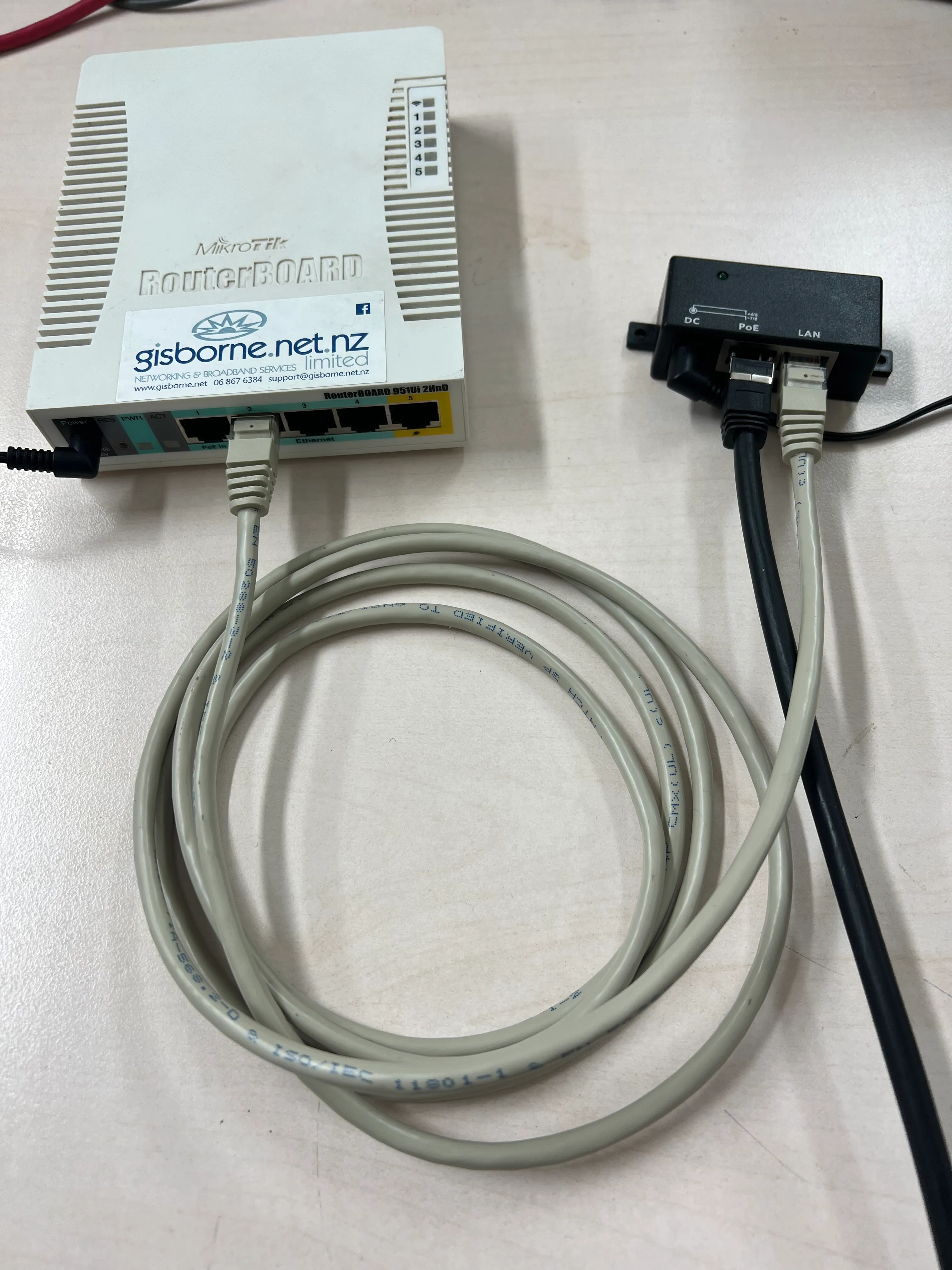
While there are different types of POE devices, our customers usually have a POE device that looks like a small black rectangle box, about 6cm by 3cm in size. It has two ports (holes) for ethernet, and one hole for its power cable. Each ethernet port (hole) should have a small label next to it - LAN or PoE. The cable going to Wifi router should be plugged into LAN, and the cable going to your rooftop antenna should be plugged into PoE.
Wifi Router
Your Wifi router should have its own power cable - it's not powered by the POE device.
As
previously
mentioned, it should have an ethernet cable that connects it to the POE device. The Wifi
router connects
to your devices (Phone, TV, computer, etc), so you can connect to the internet. You can
also
plug your
computer, printer, or other devices directly into the Wifi router if it has spare ports
(holes) available.
VoIP Phone
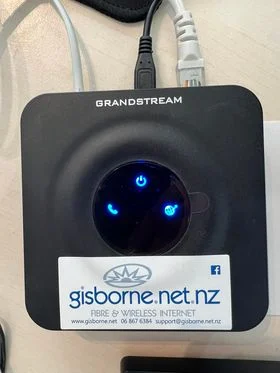
If you have a VoIP type phone, it will have a cable that connects it to an ATA
converter,
and then a cable
will connect the ATA converter to your Wifi router. Although some VoIP phones don't need
a
converter,
as it's built into the phone. In this case, the VoIP phone will have a cable that
connects
it directly
to the Wifi router.
Fibre Connections
ONT - Optical Network Terminal
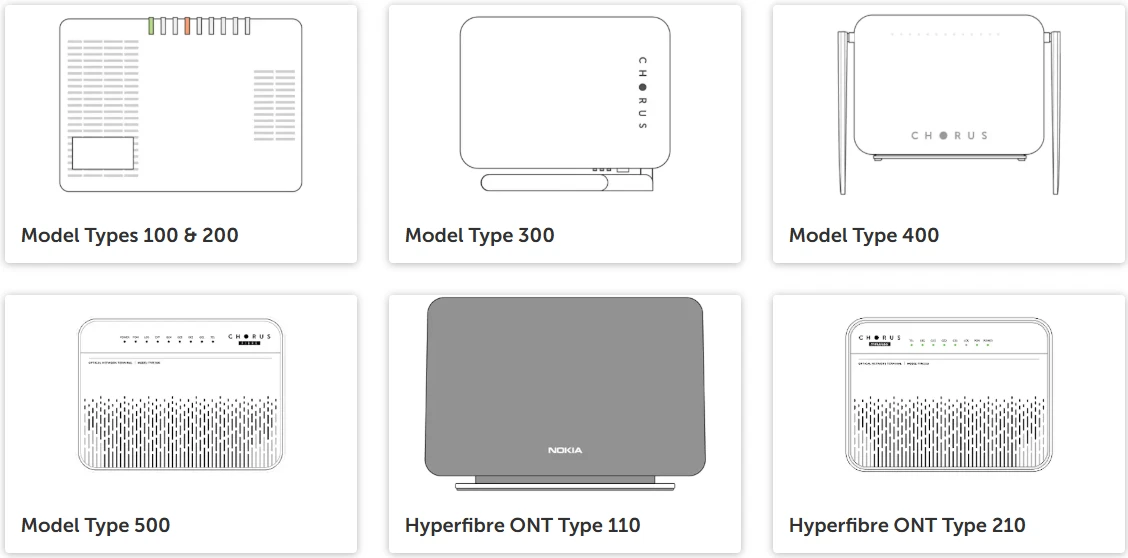
We sometimes describe these to customers as the 'Chorus box', 'Fibre box/panel', but
officially they are called an 'ONT'. These are installed and maintained by Chorus.
They convert the light from the fibre optic cable into data that your computer can read.
There are several different models that Chorus use, but they all do the same job.
Your ONT should have a power cable and an ethernet cable. The ONT has several ports, but
only one should be used (unless you've specifically asked for more). Usually this port
is
labelled 'GE1', but it may be labelled differently depending on the model. In any case,
it's
meant to always be the first port on your ONT - this could be the one on the far left.
The cable from this port should be connected to your Wifi router, also into the first
port.
For some Wifi routers the first port just means the one on the bottom, and on others it
might be on the far left, but in either case the label should read 'LAN1'.
Wifi Router
Your Wifi router should have its own power cable, and it should be connected to the ONT
as
mentioned above. The Wifi router then connects wireless to your devices
(Phone, TV, computer, etc). You can also plug your computer, printer, or other devices
directly into the Wifi router if it has spare ports available.
VoIP Phone
If you have a VoIP type phone, it will have a cable that connects it to an ATA
converter,
and then a cable
will connect the ATA converter to your Wifi router. Although some VoIP phones don't need
a
converter,
as it's built into the phone. In this case, the VoIP phone will have a cable that
connects
it directly
to the Wifi router.
Connection Diagrams & Examples
All Connections


Rural Connections

Fibre Connections